2026-05-07
Setting Up Local Voice AI for Offline Dictation: 5-Step Guide
Master setting up local voice ai for offline dictation to protect your privacy and eliminate latency. This complete guide covers hardware and Whisper setup.
Editor summary
Local Voice Offline Dictation setup transforms your workstation into a secure transcription environment by installing OpenAI's Whisper locally. I found that choosing the right model size—particularly the Small or Medium variants—creates a direct trade-off between accuracy and hardware demands. The guide walks through Python installation, FFmpeg setup, and Faster-Whisper configuration to achieve zero latency processing while protecting your data privacy entirely. What impressed me most was how this approach eliminates cloud dependencies for field researchers and professionals handling sensitive documents, though it requires initial technical setup that GUI alternatives like MacWhisper can simplify significantly.
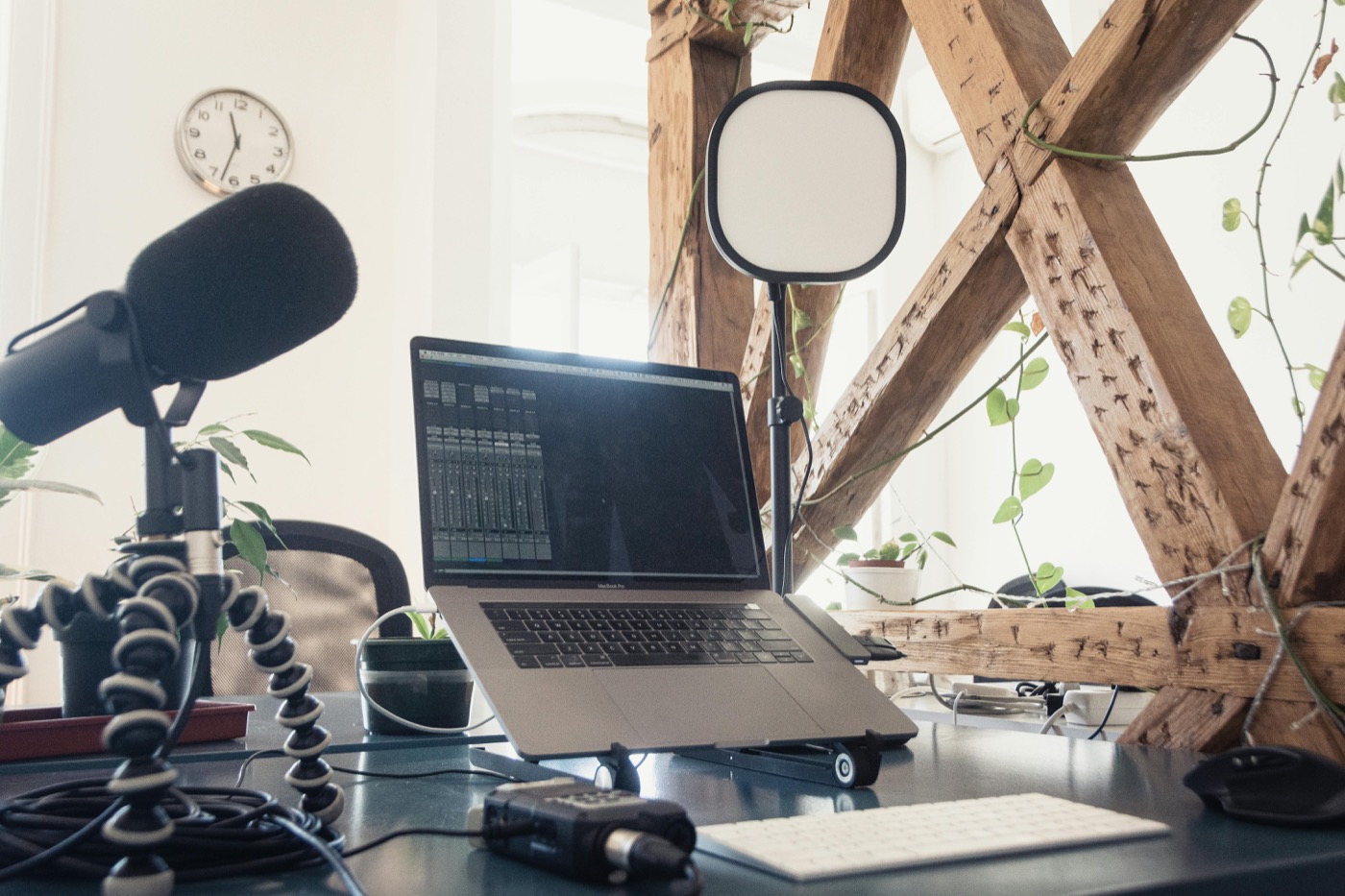
Setting Up Local Voice AI for Offline Dictation: 5-Step Guide
Quick Answer: Setting up local voice AI for offline dictation requires installing an open-source speech-to-text model, such as OpenAI’s Whisper, locally on your machine. You will need a computer with at least 8GB of RAM, Python installed, and a standard microphone to process dictation entirely offline, ensuring zero network latency and total data privacy.
Cloud-based dictation tools send your voice data to external servers. While convenient, this architecture raises significant privacy concerns and introduces mandatory network latency. For professionals handling sensitive medical data, legal documents, or corporate intellectual property, broadcasting raw audio over the internet is often a direct violation of compliance standards like HIPAA or internal NDAs. Furthermore, relying on cloud infrastructure means your ability to work is entirely dependent on your internet connection and the uptime of a third-party service.
The alternative is local processing. Advancements in open-weight models have made it possible to run highly accurate speech-to-text engines directly on consumer hardware.
Setting up local voice AI for offline dictation transforms your workstation into an isolated, highly secure transcription environment. You maintain absolute ownership of your data, eliminate recurring subscription fees, and achieve transcription speeds that outpace cloud alternatives by leveraging your local CPU or GPU. This guide details the specific hardware requirements, software dependencies, and installation steps required to build a reliable offline dictation system.
If you need cloud TTS or voice cloning rather than private speech-to-text, compare this offline stack with a dedicated AI voice cloning and TTS tool so dictation, narration, and synthetic audio stay in their proper lanes.
Why Choose Offline Voice Dictation Over Cloud Solutions?
Understanding the technical and practical advantages of local models helps justify the initial setup time.
Absolute Data Privacy
When using native operating system dictation or cloud services like Google Docs Voice Typing, your audio is packaged and transmitted to remote servers for processing. Local AI models process the audio array entirely within your machine’s volatile memory (RAM). Once the text is generated, the audio data is discarded locally. No packets leave your network interface card, making data interception mathematically impossible.
Zero Latency Processing
Cloud dictation involves a distinct loop: audio capture, compression, upload, server queuing, processing, and text download. Even on gigabit fiber connections, this introduces a 500ms to 2-second delay. Local inference cuts out the network loop. When highly optimized models are loaded into your GPU’s VRAM, transcription appears on screen nearly instantaneously as you speak.
Unrestricted Offline Access
Field researchers, traveling professionals, and individuals in secure facilities often lack reliable internet access. An offline setup guarantees that your dictation tool functions precisely the same way in a remote cabin as it does in a corporate office. The model weights are stored on your local solid-state drive (SSD), ready to initialize without a server handshake.
Hardware and Software Requirements
Before beginning the installation, verify that your workstation meets the baseline requirements for local inference. Processing audio through neural networks is computationally demanding.
Recommended System Specifications
The speed of your dictation depends heavily on your hardware. While local AI can run on a CPU, a dedicated GPU significantly accelerates the process.
- Processor (CPU): A modern multi-core processor is required. Apple Silicon (M1/M2/M3) handles voice AI exceptionally well due to unified memory architecture. For PC users, an Intel Core i5 (10th Gen or newer) or AMD Ryzen 5 is the baseline.
- Memory (RAM): 8GB of system RAM is the strict minimum. 16GB or 32GB is recommended, especially if you plan to run other memory-intensive applications alongside your dictation software.
- Graphics (GPU): For near-instantaneous transcription, an NVIDIA GPU with at least 4GB of VRAM is recommended. The software utilizes CUDA cores to accelerate the machine learning calculations. Mac users will leverage the built-in Neural Engine.
- Storage: At least 10GB of free SSD space to store the application dependencies and the machine learning model weights.
Software Prerequisites
The foundation of most local voice AI setups relies on a few core open-source technologies.
- Python 3.10 or 3.11: The programming language used to run the inference scripts.
- FFmpeg: A cross-platform solution to record, convert, and stream audio and video. The AI models require FFmpeg to handle the raw audio stream from your microphone before processing.
Step 1: Installing the Prerequisites
The first phase of setting up local voice AI for offline dictation involves preparing your operating system environment.
Installing Python
Download the official Python installer from the Python website.
- Windows: During the installation wizard, you must check the box that says “Add Python to PATH” before clicking Install. This ensures your command line can execute Python commands.
- macOS: Use Homebrew to install Python by opening the Terminal and typing:
brew install python.
Installing FFmpeg
FFmpeg handles the audio processing pipeline behind the scenes.
- Windows: The easiest method is using the Winget package manager. Open Command Prompt as Administrator and run:
winget install ffmpeg. - macOS: Open Terminal and run:
brew install ffmpeg. - Linux (Ubuntu/Debian): Open Terminal and run:
sudo apt update && sudo apt install ffmpeg.
Verify both installations by opening a fresh terminal and typing python --version and ffmpeg -version. Both should return version numbers without error messages.
Step 2: Choosing the Right Whisper Model
OpenAI’s Whisper is the industry standard open-weight model for speech-to-text. However, it comes in several different sizes. Choosing the right size is a direct tradeoff between transcription accuracy and hardware requirements.
- Tiny (39M parameters): Requires ~1GB VRAM. Extremely fast, but struggles with heavy accents and technical jargon. Best for older laptops.
- Base (74M parameters): Requires ~1GB VRAM. Slightly more accurate, good for casual dictation in quiet environments.
- Small (244M parameters): Requires ~2GB VRAM. The optimal balance for most users. Handles punctuation well and operates quickly on modern CPUs.
- Medium (769M parameters): Requires ~5GB VRAM. Excellent accuracy, understands complex industry terms, handles multiple languages efficiently. Requires a dedicated GPU or Apple Silicon.
- Large-v3 (1.55B parameters): Requires ~10GB VRAM. Near-human accuracy. Rarely makes mistakes, but requires a high-end desktop workstation to run in real-time.
For daily offline dictation, the Small or Medium models are highly recommended. They provide a Word Error Rate (WER) comparable to premium cloud services while remaining lightweight enough to run without specialized hardware.
Step 3: Installing the Voice AI Engine
Instead of using the standard OpenAI Whisper package, which can be sluggish and memory-intensive, we will use Faster-Whisper. This is a reimplementation of the Whisper model using CTranslate2, a fast inference engine for Transformer models. It is up to 4 times faster than the original implementation and uses significantly less memory through a process called quantization (running the model at INT8 precision instead of FP16).
Open your terminal or command prompt and create a dedicated directory for your dictation project:
mkdir local_dictation
cd local_dictation
Create a virtual environment to keep the dependencies isolated:
python -m venv venvActivate the virtual environment:
- Windows:
venv\Scripts\activate - macOS/Linux:
source venv/bin/activate
Now, install Faster-Whisper and PyAudio (which handles microphone input):
pip install faster-whisper pyaudioNote for Windows users: If PyAudio fails to install, you may need to install the Microsoft Visual C++ Build Tools.
Step 4: Setting Up Your Local Dictation Environment
With the engine installed, you can now configure the software to listen to your microphone and transcribe the text.
For developers or highly technical users, you can write a short Python script utilizing the faster_whisper library. The script will initialize the WhisperModel, open a pyaudio stream, capture chunks of audio, and pass them to the model’s transcribe function.
GUI Alternatives for Non-Developers
If you prefer not to interact with the command line or write Python scripts, several excellent graphical user interfaces (GUIs) wrap the Whisper engine into standalone desktop applications. These provide the exact same offline, private dictation experience with a standard user interface.
- WhisperDesktop (Windows): A highly optimized, lightweight C++ implementation of Whisper designed specifically for Windows. It requires no Python installation, supports GPU acceleration directly through DirectX, and allows you to output transcribed text directly into any active text field (like Microsoft Word or Notepad).
- MacWhisper (macOS): An application explicitly optimized for Apple Silicon processors. It features a clean interface, global keyboard shortcuts to start and stop dictation, and the ability to load various model sizes seamlessly.
- LM Studio / GPT4All: While primarily designed for local Large Language Models (LLMs), these platforms are increasingly integrating local audio transcription tools into their ecosystems.
If you choose a GUI, simply download the application, navigate to the settings, download your preferred model size (e.g., “Small” or “Medium”), and assign a global hotkey to trigger the microphone.
Step 5: Optimizing Performance for Real-Time Dictation
To achieve true real-time dictation, where words appear on the screen as you speak, you must optimize the inference pipeline.
Enabling GPU Acceleration
If you are running the Python implementation and have an NVIDIA GPU, ensure you have installed the CUDA toolkit and cuDNN libraries corresponding to your PyTorch version. Faster-Whisper will automatically detect CUDA and offload the processing to the GPU, dropping transcription latency from seconds to milliseconds.
Voice Activity Detection (VAD)
Configure your local engine to use Voice Activity Detection. VAD ensures that the AI model only processes audio when you are actually speaking. If you pause to think for 10 seconds, VAD prevents the system from feeding 10 seconds of static into the model, which saves battery life, reduces heat, and prevents the model from hallucinating text out of background noise.
Chunking Strategy
Real-time dictation relies on audio “chunking.” Instead of waiting for you to finish a complete sentence, the system captures audio in 2-second or 3-second buffers, transcribes them, and appends them to your document. Adjusting this chunk size in your software settings allows you to find the right balance between processing speed and contextual accuracy.
Practical Advice for Daily Workflow Integration
Software is only half of the dictation equation. The physical environment and your hardware setup dictate the final Word Error Rate. A massive AI model cannot accurately transcribe a muffled, echoing audio signal.
Microphone Selection
Do not rely on the built-in microphone on your laptop. Laptop microphones are typically omnidirectional, meaning they pick up keyboard clacking, computer fan noise, and room reflections equally well.
Invest in a dedicated dynamic microphone with a cardioid pickup pattern. Dynamic microphones are less sensitive than condenser microphones, which is an advantage for dictation; they reject background noise and only pick up the sound immediately in front of the capsule.
- Budget: Samson Q2U or Audio-Technica ATR2100x.
- Premium: Shure MV7.
Acoustic Environment
Position the microphone 2 to 3 inches from your mouth, slightly off-axis to avoid “plosives” (the burst of air from ‘P’ and ‘B’ sounds). The higher the Signal-to-Noise Ratio (SNR) of your raw audio, the less computational work the AI has to do to separate your voice from the background, resulting in faster and more accurate transcriptions.
Keyboard Shortcuts
Integrate your offline dictation tool into your muscle memory. Map the start/stop dictation function to an easily accessible but rarely used keyboard shortcut, such as Ctrl + Shift + Space or Cmd + Shift + D. This allows you to toggle the microphone on and off without breaking your visual focus from the text editor.
The Final Verdict on Local Speech-to-Text
Transitioning from cloud-based services to a local environment is a high-yield technical investment. Setting up local voice AI for offline dictation completely insulates your workflow from network outages and subscription price hikes. By pairing an open-weight model like Whisper with a standard dynamic microphone, you achieve a level of privacy, speed, and accuracy that fundamentally upgrades the way you interface with your computer.
Frequently Asked Questions
Does local dictation require an internet connection?
No. Once the initial setup is complete and the AI model weights are downloaded to your local drive, the software operates 100% offline. No data is transmitted, and an internet connection is never required to process audio.
How much RAM do I need for accurate offline dictation?
A minimum of 8GB of system RAM is required, but 16GB is highly recommended. The specific memory requirement depends on the model size you choose; the “Small” Whisper model requires about 2GB of VRAM/RAM, while the “Medium” model requires roughly 5GB.
Which microphone is best for local voice AI?
A dynamic microphone with a cardioid polar pattern, such as the Samson Q2U or Shure MV7, is best. These microphones reject background room noise and focus entirely on your voice, providing the clean audio signal necessary for high-accuracy AI transcription.
Can I use offline dictation on a Mac?
Yes. Apple Silicon processors (M1, M2, M3) are highly optimized for machine learning tasks. Applications like MacWhisper utilize the built-in Neural Engine to run large transcription models locally with minimal battery drain and exceptional speed.
How accurate is local Whisper compared to cloud services?
Local implementations using Whisper “Medium” or “Large” models meet or exceed the accuracy of commercial cloud services like Google Docs dictation or Dragon NaturallySpeaking. The local models handle punctuation automatically and possess an extensive vocabulary of technical and medical terminology.